

Important: Always use the latest version of Claude Code. Older versions may not work with Portkey’s gateway.
Quick Start
1
Create a Virtual Key
Go to Virtual Keys → Create → Select Google Vertex AI.Enter your GCP credentials: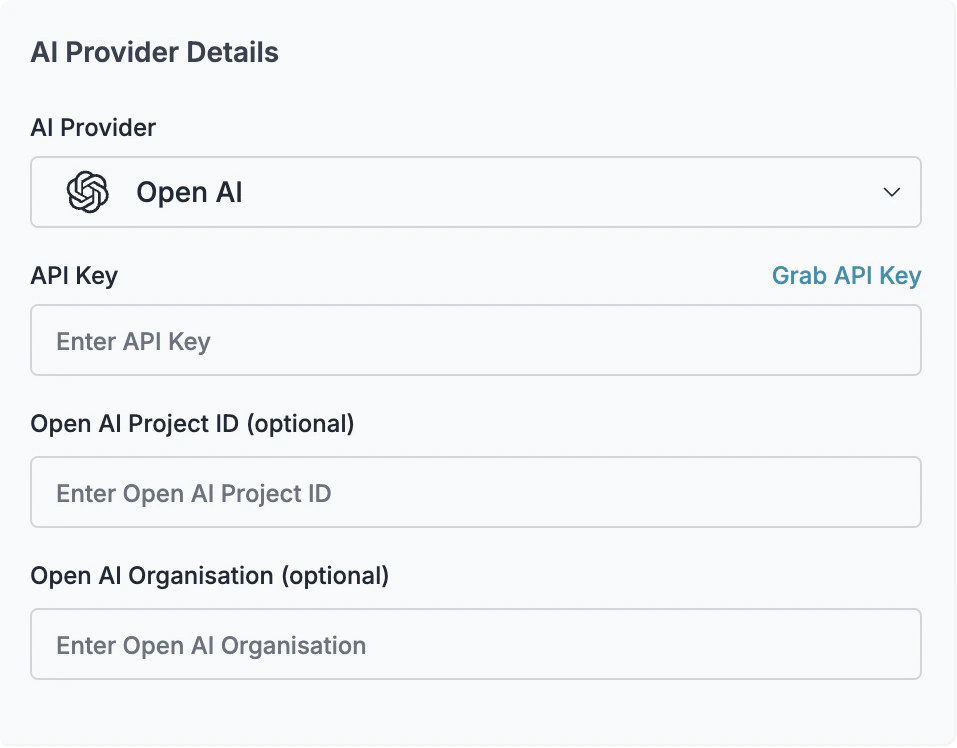
- Service Account JSON key
- GCP Project ID
- Region (e.g.,
us-central1)
2
Get Your Portkey API Key
Go to API Keys → Generate a new key.
3
Configure Claude Code
Edit Replace:
~/.claude/settings.json (user-level) or .claude/settings.json (project-level):YOUR_PORTKEY_API_KEYwith your Portkey API keyYOUR_VIRTUAL_KEYwith your virtual key ID
Use
ANTHROPIC_VERTEX_BASE_URL specifically for Vertex AI, not the generic base URL.Using a Config
For advanced features like fallbacks, caching, or retries, create a Portkey Config:1
Create a Config
2
Update Claude Code Settings
Add the config to your settings:
Adding Metadata
Track Claude Code usage by team, project, or user:Advanced Configuration
Fallbacks
Route to backup providers when Vertex AI fails. Create a config with fallback targets:Load Balancing
Distribute requests across multiple regions:Caching
Reduce costs and latency for repeated queries:Retries
Automatically retry failed requests:Budget Limits
Set spending controls on your virtual key:- Go to Virtual Keys → Select your Vertex AI virtual key
- Click Edit → Budget & Limits
- Configure:
- Cost limit: Maximum spend (e.g., $500/month)
- Rate limit: Requests per minute/hour
Troubleshooting
Claude Code Version Issues
Cause: Older versions of Claude Code may not be compatible. Fix: Update to the latest version:Complete Example
Full configuration with all features enabled:Next Steps
Access Controls
Set up fine-grained permissions and audit logging
Budget Management
Prevent overspending with hard budget limits